
advertisement
Americans check their phones about 96 times a day. This shows that small changes can save a lot of time and focus. This guide will show you how to start simplifying your digital life today with easy steps.
By simplifying, you can reduce stress and be more productive. Your devices will work faster, and you’ll focus better. Streamlining daily tasks means less distraction from constant notifications.
Here’s a quick checklist for today: check your apps, turn off unwanted notifications, delete one app you don’t use, and set a 24-hour digital break. These small steps can make a big difference in your digital experience.
Change your habits slowly but consistently. Make sure each change aligns with your goals. Later, we’ll talk about tools like Google Drive and Slack. Choose what fits your needs and privacy best.
Assess Your Current Digital Habits
Begin by taking a calm, honest look at how you use devices every day. A quick check can show you patterns. These patterns help you simplify your digital life, manage tech clutter, and make your daily tasks easier.
Do a usage audit on your phone and computer to see how much time you spend on them. On an iPhone, open Screen Time. On Android, use Digital Wellbeing. For your desktop, check your browser history and try RescueTime for detailed reports.
Look for habits like passive scrolling, checking things over and over, and shadow channels that split your attention. Passive scrolling is often a bad habit that doesn’t add much value. Apps for messaging and entertainment can quietly take up a lot of time.
Make a list of what you consider time-wasting. Ask if it gets in the way of your priorities, if it makes you check things too much, or if it breaks your focus. Mark anything that fits these criteria for action.
Make a list of your regular payments to check your subscriptions. Look at your bank statements or use tools like Rocket Money or Mint. They can help you find streaming services, news apps, cloud storage, and other apps you don’t use anymore.
Decide which subscriptions to cancel, combine, or reduce. Look for duplicate music or cloud plans. Set reminders on your calendar to review big annual charges before they renew.
Set simple digital goals based on your audit. Maybe you want to focus better, communicate more efficiently, or spend less time on social media. Match your goals to your findings. If you want to be more productive, target email and social media. If you want to relax, turn off work alerts when you’re off work.
Start with two main areas to simplify and set goals for one to three months. Small, focused changes help you manage tech clutter and make your daily tasks easier.
Streamline Your Devices and Accounts
Managing devices and online accounts makes daily life easier. Start with a clear plan to streamline your virtual presence. This reduces overlap and makes life simpler.
Why consolidate accounts?
Scattered accounts lead to lost passwords and extra costs. Use tools like Google Takeout or Apple data requests to export your data before making changes. Merge duplicates when services allow it. Close unnecessary accounts and update your primary email across services.
When to keep separate accounts
Some services need isolation for safety. Keep distinct accounts for banking, health portals, and sensitive work systems. This protects privacy and follows regulations.
Consolidate Multiple Accounts
Follow these steps to consolidate accounts without losing data:
- Export data from each service you plan to close.
- Merge or move files into a single Google, Apple, or Microsoft account where practical.
- Set one primary contact email on major services for recovery and billing.
- Cancel duplicate subscriptions to lower costs and manage tech clutter.
Utilize Device Management Tools
Use built-in and third-party tools to centralize device control. Apple’s Family Sharing, Google Family Link, and Microsoft’s Your Phone help manage settings and screen time across devices.
For professionals, consider enterprise tools like Microsoft Intune or Jamf. These platforms enforce updates and security policies for teams and freelancers with multiple devices.
Good device hygiene prevents problems. Keep operating systems and apps current. Turn on multi-factor authentication with apps such as Google Authenticator or Microsoft Authenticator. For stronger protection, use hardware keys like YubiKey.
Syncing and backups reduce manual work. Enable iCloud, OneDrive, or Google Drive to keep files consistent across devices. Audit storage to avoid paying for duplicate backups and to manage tech clutter.
Centralize passwords with a trusted manager such as 1Password, LastPass, or Bitwarden. A single, secure vault simplifies logins and lowers the chance of reused or weak passwords.
Organize Your Digital Storage
First, choose one main cloud service that fits your needs. Google Drive is great for G Suite users, OneDrive for Microsoft 365, and iCloud for Apple devices. This choice simplifies your digital storage and saves money on overlapping plans. If you have big archives or sensitive files, keep a small backup.
Clear out duplicates and old downloads to simplify cloud storage. Use tools like Google Drive’s storage manager, macOS Finder, or Windows Disk Cleanup to free up space. For long-term storage, move rare files to an external SSD or cold storage like Amazon Glacier. These steps help you organize better and work more efficiently.
Make a simple folder system to keep things organized. Use folders like Personal, Work, Finance, Media, Projects, and Archived. Inside Projects, use subfolders for each project and date them like 2026-05. This keeps things tidy and easy to find.
Use clear names for your files so you can find them quickly. A good format is YYYY-MM-DD_description_version_author, like 2026-05-01_TaxReceipt_v1. This makes backups faster, collaboration easier, and helps teammates find files.
Automate tasks like cleanup and renaming to save time. Use Hazel on macOS, Power Automate on Windows, or scripts for bulk renames. Automation helps you stick to standards and frees up time for more important tasks.
Optimize Your Social Media Use
Social media helps us connect and share ideas. Making small changes can make our online interactions better. We can do this without giving up the platforms we enjoy.
Audit for value
Make a list of apps that really help you. LinkedIn can help your career. Instagram is great for visuals. Twitter/X is for news. Facebook is good for local groups.
Remove accounts that don’t add much to your life.
How to pause without deleting
Use archive or deactivate options if you’re unsure. On Instagram, go to Settings > Account > Delete or Temporarily Disable Account. On Facebook, open Settings & Privacy > Your Facebook Information > Deactivation and Deletion. On Twitter/X, choose Settings and Support > Your account > Deactivate your account. TikTok users find Manage account > Delete account or choose a break by logging out.
Archiving keeps your content safe while you test the change.
Unify your identity
Choose a consistent profile name and link a single email to major accounts. This makes managing your social identities easier.
Set clear time limits
Use Screen Time on iOS or Digital Wellbeing on Android to set daily caps. Try two 20-minute check windows each day. Use app blockers like Freedom or Focus@Will to block distractions for longer periods.
Trim notifications
Turn off nonessential push alerts. Mute likes and comments so they don’t interrupt you. Keep direct messages enabled for urgent or important conversations. This makes communication simpler and keeps you focused.
Curate quality feeds
Follow fewer, higher-quality accounts. Use lists on Twitter/X or Instagram’s Close Friends to slice feeds into meaningful groups. This helps you stay focused and keeps your feed relevant.
| Action | Where to Do It | Benefit |
|---|---|---|
| Audit platforms | LinkedIn, Instagram, Twitter/X, Facebook | Keep only accounts that add value |
| Archive or deactivate | Account settings on each app | Preserve content while reducing noise |
| Unify login | Email linked to major accounts | Simpler account recovery and management |
| Set time limits | Screen Time, Digital Wellbeing, Freedom | Better focus and fewer interruptions |
| Mute nonessential alerts | App notification settings | Fewer distractions, clearer priorities |
| Curate with lists | Twitter/X lists, Instagram Close Friends | Higher-quality engagement and feed control |
Declutter Your Email Inbox
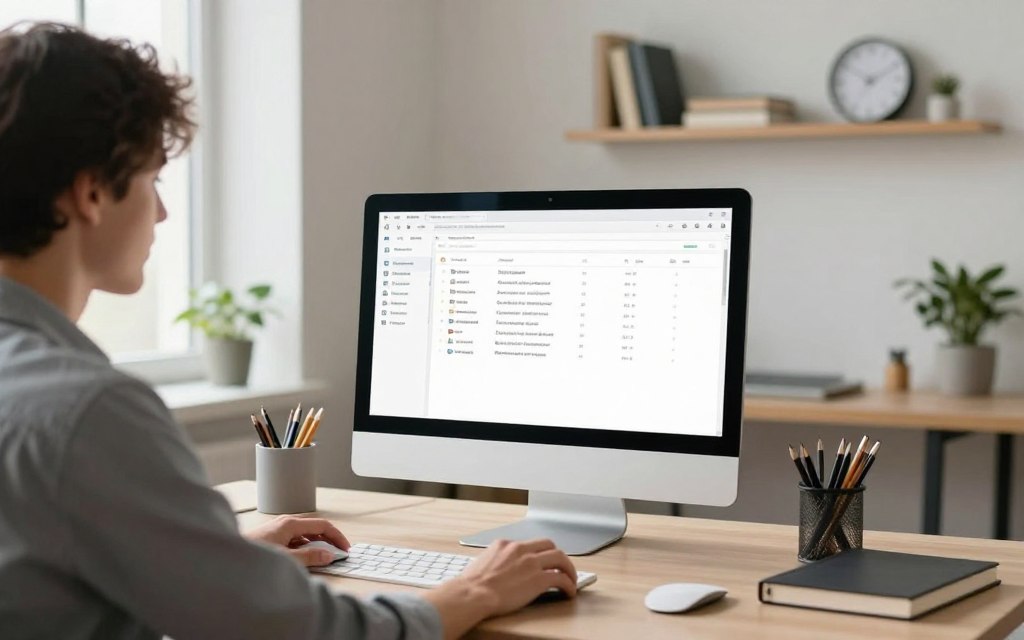
A calm inbox makes it easier to manage your online activities and digital communication. Start by quickly checking how many unread messages you have. Look at who sends you emails and what types need your action. A little effort each day is better than trying to clean everything at once.
Unsubscribe from Unwanted Newsletters
Use the unsubscribe links at the bottom of newsletters or Gmail’s one-click Unsubscribe prompt to quickly remove unwanted emails. For a bigger cleanup, try services like Unroll.Me or search for “unsubscribe” or “manage preferences” to find recurring lists.
Be strict about what you keep. If a newsletter hasn’t been opened in a month or doesn’t add value, delete it. Set aside 30 minutes each week to cut down on subscriptions until your inbox is manageable.
Use Folders and Filters for Organization
Set up a simple system: Inbox for things to do, Follow-up for messages to check later, Archive for reference, and Trash/Spam for junk. This makes it easier to stay focused and organize your online activities across different devices.
Use filters in Gmail and Outlook to automatically label emails like newsletters and receipts. In Apple Mail, use VIP lists for important contacts. Set up rules to automatically move routine emails to where you expect them.
Save time with templates and canned responses for common replies. Limit your email checks to set times, like 9am, 1pm, and 4pm. This reduces distractions and makes your digital communication smoother throughout the day.
| Action | What to Do | Tools |
|---|---|---|
| Unsubscribe | Remove newsletters you don’t open or need; batch for 30 minutes weekly | Gmail Unsubscribe, Unroll.Me, search “unsubscribe” |
| Filter Setup | Auto-label newsletters, receipts, and priority senders to routes | Gmail filters, Outlook rules, Apple Mail VIP lists |
| Triage System | Use Inbox, Follow-up, Archive, Trash to manage flow | Native folders in Gmail, Outlook, Apple Mail |
| Reply Templates | Create canned responses for common replies to save time | Gmail templates, Outlook Quick Parts, Apple Mail snippets |
| Scheduling Checks | Set specific times to review mail to reduce interruptions | Calendar reminders, Focus modes on iOS and Android |
Implement a Simple Task Management System
Choosing one reliable approach for task management cuts through chaos and helps improve digital workflow. Pick either a dedicated app or a single paper planner and move all your tasks into that system. Consolidation prevents fragmented to-do lists and makes it easier to streamline daily tasks.
Use a quick capture step to clear your mind. Do a brain dump of every task, appointment, and idea. Then sort items by context such as Home, Work, and Errands.
Apps vs. paper
- Todoist, Microsoft To Do, Asana, Trello, and Notion sync across devices, add reminders, and integrate with calendars and email.
- Paper planners and bullet journals remove digital distractions and can improve focus during deep work sessions.
- Select one system and commit. Migrating everything into one place helps improve digital workflow and keeps priorities visible.
Set up your system
- Capture: do a complete brain dump into inbox or first page.
- Categorize: assign contexts or projects to each item.
- Limit: choose 3–5 MITs (most important tasks) per day.
Time blocking turns a to-do list into scheduled work. Use Google Calendar, Outlook, or Fantastical to assign fixed blocks for focused work, meetings, and admin tasks. Batching similar activities like email and calls helps reduce task-switching costs and lets you streamline daily tasks more effectively.
Follow simple rules for blocks. Set hard start and end times, include short buffers between sessions, and protect morning deep-work blocks by turning off notifications. These practices help improve concentration and make task management feel less overwhelming.
Make Use of Automation Tools
Automation can save you time and make your daily tasks easier. Start with a simple problem and use automation tools to find solutions. This way, you can learn which automations really help.
Choose a platform that meets your needs. Zapier connects hundreds of apps for workflows. IFTTT is great for simple tasks and home automation. Microsoft Power Automate is perfect for Office 365 and big company needs.
Native tools like Gmail filters, macOS Shortcuts, and Android Routines can also help. They automate tasks without needing third-party apps.
Try automating tasks that bother you every day. Save email attachments to Google Drive or auto-create Trello cards from emails. You can also sync contacts to Salesforce or back up photos to iCloud or Google Photos.
Start with one or two automations to avoid too much. This helps you watch for any problems or privacy issues.
Set up automatic replies and filters
Automatic replies are good for when you’re out of office or need to focus. Keep the message short and sweet. This sets clear expectations and cuts down on unnecessary emails.
Filters help manage your email. Auto-archive receipts, label newsletters, and route important emails to a special folder. Check your filters every month to keep up with changing projects.
Always think about privacy and security when using automation tools. Check the permissions of third-party tools and remove unused access. Regular checks help you keep your tech organized and protect your data.
| Task | Recommended Tool | Typical Setup | Benefit |
|---|---|---|---|
| Save email attachments | Zapier or Gmail filters | Trigger on attachment → save to Google Drive folder | Reduces manual downloads and centralizes files |
| Create task from email | Trello + IFTTT or Zapier | Star or label email → create Trello card with link | Keeps tasks tied to original context |
| Sync contacts to CRM | Microsoft Power Automate or Zapier | New contact in phone or Gmail → add to Salesforce/HubSpot | Ensures contact lists stay up to date |
| Photo backup | Google Photos, iCloud, or Android Routines | Auto-upload new photos to selected cloud album | Simplifies backups and protects memories |
| Auto-reply during focus time | Gmail vacation responder or Outlook rules | Enable with custom message and schedule | Manages expectations and reduces interruptions |
| Label and route newsletters | Gmail filters or Outlook rules | Filter by sender or subject → apply label or folder | Clears inbox and helps prioritize emails |
Curate Your Digital Content Consumption
Quality is more important than quantity when choosing what to see on your screen. A focused feed helps you pick the best digital content. This makes your digital life simpler and more enjoyable. Start by picking a few trusted news sources and experts you admire.
Use an RSS reader like Feedly to keep all your reading in one place. Save long articles to Pocket or Instapaper. Then, read them all in one weekly session. This method helps you focus better and learn more deeply.
Review your social media follows and newsletters. Keep sources like The New York Times, The Washington Post, NPR, or expert newsletters that are valuable. Remove accounts that just make noise.
Stepwise notification audit:
- List every app that sends alerts.
- Turn off nonessential push notifications.
- Allow priority alerts only for family, critical work apps, and calendar events.
- Set custom tones for urgent contacts to avoid confusion.
Use device tools to cut down on distractions. Turn on Do Not Disturb, use iOS Focus profiles, or Android Work profiles to block distractions during focused work. These tools help you stay on track and reduce stress.
Less noise means better focus and well-being. By carefully choosing what digital content you consume and reducing unnecessary alerts, you improve your digital experience. This makes your digital life simpler and more fulfilling.
Practice Digital Minimalism
Start by making a list of the apps on your phone and computer. Write down each app’s name, how often you use it, and its main benefit. Also, note any monthly costs. This helps you simplify your digital life without any confusion.
Give each app a score based on how often you use it, its benefits, and any costs. Keep the apps that score high and are useful. Delete apps that score low or do the same thing as others. This can make your devices faster, save money, and reduce distractions.
Choose simpler tools over complex ones when you can. For example, use a basic notes app instead of a big project tool if you just need notes. This makes your daily tasks quicker and easier.
Think deeply about each app’s value. Does it help you reach your goals or just distract you? Asking these questions helps you make choices that simplify your digital life and keep your focus sharp.
Make it a habit to review your digital habits and subscriptions every quarter. This keeps your setup in line with your priorities and helps you stick to digital minimalism.
Remember, your mental health is important when managing your tech. Notice how constant connection affects your sleep and focus. If tech causes you stress or interferes with your life, talk to a therapist who knows about digital wellbeing.
- List all installed apps on phone and desktop.
- Rate frequency of use: daily, weekly, monthly.
- Assess benefit: essential, useful, optional.
- Note cost: free, subscription, one-time purchase.
- Remove or replace low-value apps to streamline virtual presence.
| App | Frequency | Primary Benefit | Cost | Action |
|---|---|---|---|---|
| Evernote | Weekly | Note organization and search | Subscription | Keep if advanced search needed; replace if not |
| Apple Notes | Daily | Quick notes and sync across Apple devices | Free | Keep for basic needs |
| Trello | Monthly | Project boards and collaboration | Free/Subscription | Archive unused boards; remove if rarely used |
| Spotify | Daily | Music streaming | Subscription | Keep if it supports wellbeing and time use |
| Unknown Utility App | Rarely | Single small feature | One-time purchase | Remove to simplify digital life |
Establish Healthy Digital Boundaries
To make digital life simpler and workflow better, set clear limits on device use. Start with small, consistent habits to protect focus and sleep. These changes can make a big difference.
Designate Time for Digital Detox
Start with one evening a week without devices, then add a full weekend if needed. Use airplane mode or Do Not Disturb to stay focused. A 7-day plan can guide you: Day 1—check notifications; Day 2—limit apps; Day 3—no screens in the evening; Day 4—track mood and productivity; Days 5–7—adjust and repeat.
Tools like Forest for focus and Offtime for blocking can help. A physical charging station outside the bedroom also supports the habit. These steps help you set healthy digital boundaries.
Create Device-Free Zones at Home
Choose rooms where devices are not allowed: bedroom, dining table, or family room. Make rules for device-free meals and family time. This helps everyone stay present and sleep better.
Use a dedicated charging basket and agree on household rules. Tell colleagues and friends when you’re available to avoid work in personal time. These steps simplify digital life and improve workflow by reducing distractions and increasing focus.